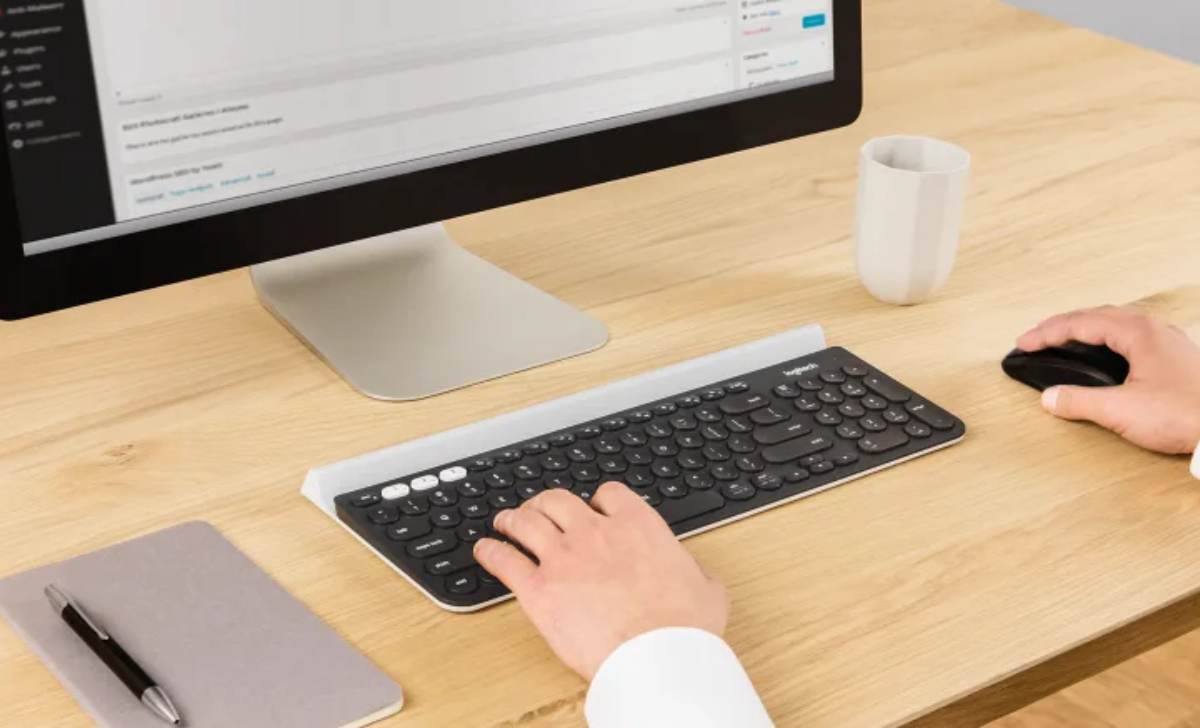
Logitech Unifying Software – Complete Guide to Connect Multiple Logitech Devices Easily
Wireless devices have become an essential part of modern workspaces. Many users prefer wireless keyboards and mice because they reduce cable clutter and improve mobility. However, managing multiple wireless devices can sometimes be confusing if each device requires a separate USB receiver.
This is where Logitech Unifying Software becomes extremely useful. It allows users to connect multiple compatible Logitech devices to a single USB receiver. With this software, you can easily pair and manage wireless peripherals like keyboards and mice without needing several USB ports. This makes it an excellent solution for improving productivity and keeping your workspace organized.
What is Logitech Unifying Software?
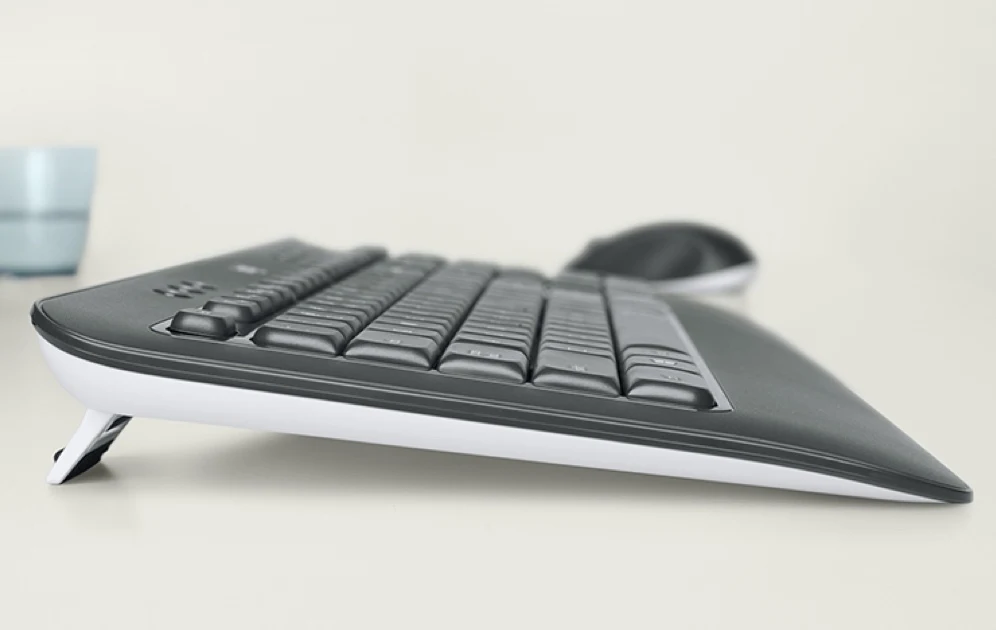
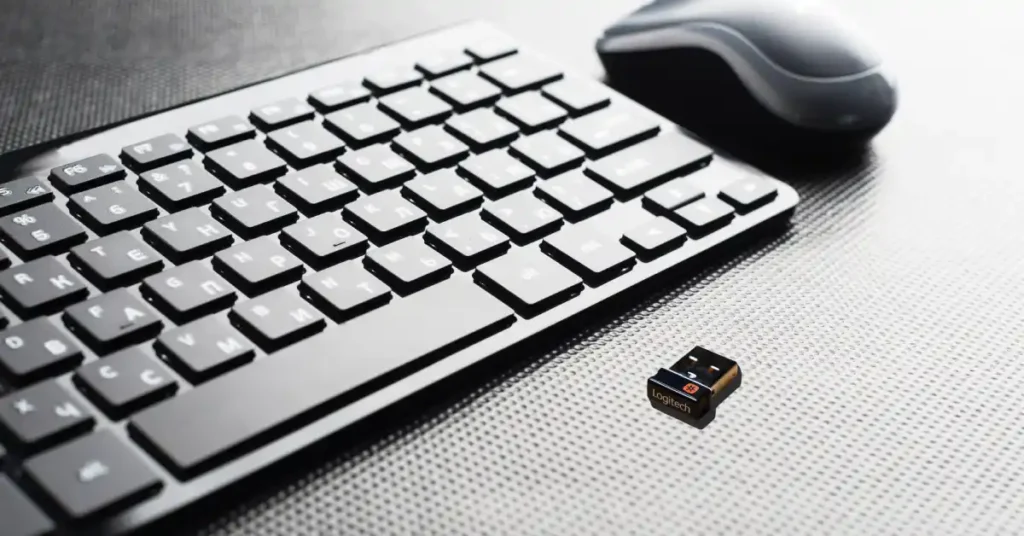
Logitech Unifying Software is a utility developed by Logitech that allows users to connect up to six compatible Logitech wireless devices to a single USB receiver. This receiver is known as the Logitech Unifying Receiver, which is a small USB device that plugs into your computer.
Once installed, the software helps detect compatible Logitech devices and allows you to pair them with the receiver. This makes it possible to control multiple peripherals with a single receiver, reducing the need for multiple USB ports and improving overall convenience.
Why Logitech Unifying Software is Important
The main purpose of Logitech Unifying Software is to simplify device management. Many users own several wireless devices, and having separate receivers for each one can create unnecessary clutter.
With the help of this software, you can manage all compatible devices from a single interface. It also improves efficiency because switching between devices becomes easier. This is especially helpful for professionals, gamers, and office workers who use multiple Logitech accessories.
Devices Compatible with Logitech Unifying Software
Not all Logitech devices support the Unifying Receiver, but many popular models do. Compatible devices usually have a small orange Unifying logo on them.
Common compatible devices include:
- Logitech wireless keyboards
- Logitech wireless mice
- Logitech trackballs
- Logitech wireless combo devices
These devices can easily connect to one receiver through the software, allowing smooth and reliable wireless performance.
Key Features of Logitech Unifying Software
Connect Multiple Devices with One Receiver
One of the most impressive features of Logitech Unifying Software is its ability to connect multiple devices using one receiver. Instead of plugging in several USB receivers, you can pair up to six compatible devices to a single unifying receiver.This feature is particularly useful for laptops and compact devices with limited USB ports.
Easy Device Pairing Process
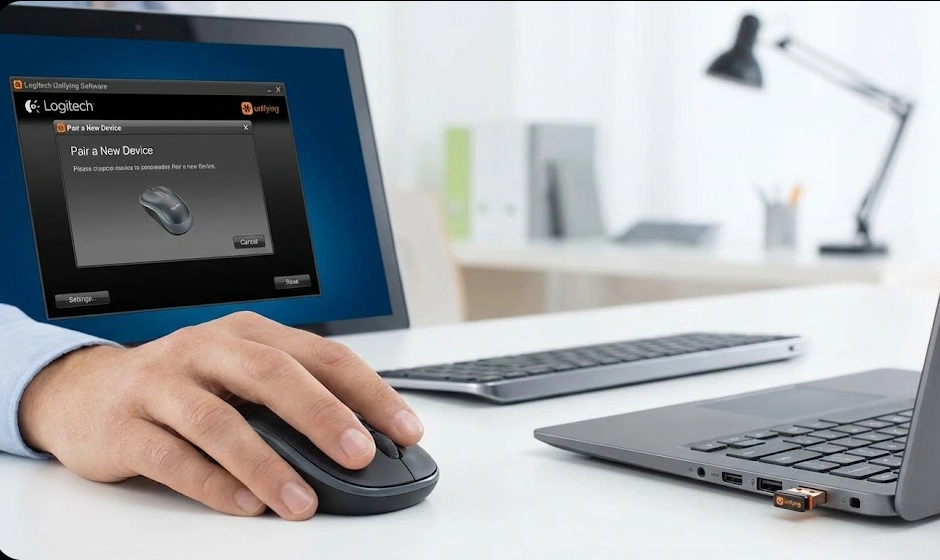
The software provides a simple and user-friendly pairing process. Once the receiver is connected to your computer, the software guides you through the steps required to pair a new device.
Most of the time, pairing only takes a few seconds. The software automatically detects the device and establishes a secure wireless connection.
Wireless Convenience and Productivity
Using a single receiver for multiple devices reduces clutter and improves workspace organization. It also enhances productivity because you do not need to worry about managing several wireless receivers.This setup is especially beneficial for office environments where multiple wireless peripherals are used daily.
How to Download Logitech Unifying Software
Downloading the software is a straightforward process and only takes a few minutes.
System Requirements for Installation
Before downloading the software, make sure your system meets the basic requirements. Logitech Unifying Software works with most modern operating systems including:
- Windows 10 and later
- macOS operating systems
- Some older versions of Windows and Mac
It also requires a compatible Logitech Unifying Receiver connected to your computer.
Steps to Download Logitech Unifying Software
Follow these steps to download the software:
- Visit the official Logitech website.
- Search for Logitech Unifying Software in the support section.
- Select the version compatible with your operating system.
- Download the installation file.
- Run the installer and follow the instructions.
After installation, the software will automatically detect your Unifying receiver.
Installing the Software on Windows and Mac
The installation process is simple on both platforms.
For Windows users, the installation wizard will guide you through the setup steps. Once completed, the program will launch automatically.
Mac users can install the software by opening the downloaded file and dragging the application into the Applications folder. After installation, you can start pairing devices immediately.
How to Pair Devices Using Logitech Unifying Software
Pairing devices with the Unifying receiver is quick and easy.
Connecting a Logitech Mouse
To connect a Logitech mouse:
- Insert the unifying receiver into your computer.
- Open Logitech Unifying Software.
- Click the Add Device option.
- Turn on your Logitech mouse.
- The software will detect and pair the mouse automatically.
Within seconds, your mouse will be ready to use.
Connecting a Logitech Keyboard
Pairing a Logitech keyboard follows a similar process.
- Launch the Logitech Unifying Software.
- Select the option to add a new device.
- Turn on the keyboard.
- Follow the on-screen instructions to complete pairing.
Once connected, the keyboard will work instantly with the receiver.
Managing Multiple Devices with One Receiver
The software also allows you to manage multiple devices connected to the same receiver. You can view all paired devices and remove any device if needed.This feature is helpful when replacing devices or adding new ones to your setup.
Common Issues with Logitech Unifying Software
Although the software works reliably most of the time, some users may experience minor issues.
Device Not Detected by the Receiver
Sometimes the receiver may fail to detect a device. This usually happens when the device is not compatible or the battery is low.Checking compatibility and replacing batteries often solves the problem.
Pairing Problems and Solutions
If pairing fails, try the following solutions:
- Restart the software
- Reconnect the USB receiver
- Turn the device off and on again
- Move the device closer to the receiver
These steps usually fix most pairing issues.
Troubleshooting Connectivity Issues
Wireless interference can sometimes affect connectivity. Keeping the receiver away from large metal objects and Wi-Fi routers can improve signal strength.Updating the software and device drivers may also help resolve connectivity problems.
Benefits of Using Logitech Unifying Software
Reduce USB Port Usage
Using a single receiver for multiple devices helps save USB ports. This is particularly useful for laptops and compact desktops.
Improve Workspace Organization
Fewer cables and receivers mean a cleaner and more organized workspace. This helps improve focus and efficiency.
Better Wireless Device Management
The software allows easy management of multiple wireless devices from one interface. This simplifies device control and enhances usability.
Logitech Unifying Software vs Logitech Options
Key Differences Between the Two Software
Logitech Unifying Software focuses mainly on connecting and managing wireless devices through a single receiver.
Logitech Options, on the other hand, provides advanced customization features such as button configuration, gesture controls, and device personalization.
Which Software Should You Choose?
If your main goal is to pair multiple devices with one receiver, Logitech Unifying Software is the best choice.
However, if you want advanced customization features for Logitech devices, Logitech Options may be more suitable.
FAQ
1: Can you download Logitech Unifying Software?
Yes, you can download Logitech Unifying Software from the official Logitech website. It allows you to connect and manage multiple compatible Logitech wireless devices using a single Unifying USB receiver.
2: Do you need to install Logitech Unifying Software?
Yes, installing Logitech Unifying Software is recommended if you want to pair additional compatible Logitech devices with one receiver. It helps detect devices and manage wireless connections easily.
3: How do I setup my Logitech Unifying receiver?
Insert the Unifying receiver into your computer’s USB port, open the Logitech Unifying Software, turn on your device, and follow the on-screen instructions to complete the pairing process.
4: How do I get my computer to recognize my Logitech keyboard?
Plug the Unifying receiver into your computer, turn on the keyboard, and use Logitech Unifying Software to pair the device. Ensure the keyboard has working batteries and is compatible.
5: Why is my Logitech keyboard not pairing with Unifying receiver?
Your keyboard may not pair due to low batteries, compatibility issues, wireless interference, or connection errors. Restart the device, reconnect the receiver, and try pairing again using the software.
Conclusion
Logitech Unifying Software is a powerful tool for managing wireless Logitech devices efficiently. It allows users to connect multiple peripherals to a single receiver, reducing clutter and saving valuable USB ports.
With its simple installation process and easy device pairing, the software provides a convenient solution for both home and office users. Whether you use a wireless mouse, keyboard, or other compatible Logitech devices, Logitech Unifying Software makes device management simple and reliable.